How I Organize My Google Classroom for Online Instruction
- Mar 12, 2020
- 4 min read
Updated: Feb 15, 2023
When I transitioned from full-time classroom teacher to hybrid school teacher (2.5 days/week in person and 2.5 days/week online) I quickly learned that teaching online forces you to become very organized, especially when posting daily work for students.
Additionally, where that work is posted makes a big difference. This year my middle school team made the transition from Blackboard to Google Classroom.
Google Classroom: A Learning Management System
Google Classroom is a learning management system (LMS), and while there are plenty of others out there (Blackboard, Canvas, Schoology) I prefer Google Classroom for four reasons:
It’s free
It is intuitive and easy to use
It integrates easily with all other Google products
It’s awesome
If you’ve never used it before, start here. Learn the basics of setting up a class, students, and assignments, then come back when you are ready to start posting assignments.

Organizing with Topics
When my school started to transition from Blackboard to Google Classroom, one of the first worries teachers had was the lack of organization features. You can’t create folders on Google Classroom, or sub-folders, or sub-sub-folders, and some of my colleagues were worried that it would look like a chaotic mess, or worse, that students wouldn’t be able to find anything.
Instead of folders, you can create “topics” on Google Classroom, then drag and drop your assignments, questions, materials, etc, under the appropriate topic.

Your topics could be unit names, assignment types, or dates. We've tried a couple different strategies at our school, but what we've decided works best so far is the following.
Topic Organization
Topic 1: Week at a Glance
This is the top most topic in our classwork tab. The only thing we post under it is a “material” with a Google Doc attached, summarizing the assignments and events for the week ahead.
That “material” is always labeled “Week #” so that students and parents know which week we are on.

Topic 2: Week # - Unit Name
Each week we post a new topic and label it with the current week’s number, plus the name of the unit we are working on. There are a lot of these as the weeks add up, but the current week is always the one closest to the top (just under “Week at a Glance”) so it is easy to find the most current assignments.

Topic 3: Class Materials
At the bottom of our topics, we post a section for miscellaneous resources like the syllabus, helpful link, etc. that might need to be referenced at any time.

Assignments Titles
Because Google Classroom assignments aren’t buried deep in a series of folders and sub-folders, we’ve found that students complete more work on Google Classroom than they did on Blackboard.
Because we've witnessed how important easy navigation is in completing work, and there is only one level of organization (Topics) in Google Classroom; we’ve also made the labeling of our assignments another key piece of our organization.
Each assignment is labeled in this order:
1. Week #
We post the “Week at a Glance” with the week number at the top, so the students always know what week they are on.
2. Abbreviation of the day of the week the assignment SHOULD BE WORKED ON.
That way, on a Monday, students can quickly look at all their assignments and know the ones labeled with an “M” are what they should be working on that day.
Additionally, it makes it really easy to refer back to assignments (and find them using the CTRL + F shortcut) because there will only be one “11M” assignment.
3. The type of assignment it is
I distinguish between:
-Do Now (everyday)
-Assignments (every online day)
-In-Class (when I post an activity for them during an on-campus day)
-Independent Reading (every online day)
4. The assignment name
In the end it looks something like this:

I think part of the reason this strategy is effective at our middle school is that we developed the system as a team. We all organize our Google Classrooms and label our assignments in the same way.
When students are switching between English, math, science, and history on Monday, they know they are looking for all the “11M” assignments that day.
The Stream:
Everything I’ve mentioned so far takes place in the “classwork tab” on Google Classroom. I regularly remind my students to only access their assignments from the classwork tab and never the stream.
Stream Posts
That doesn’t mean the stream isn’t important though. For online learners, the stream is one of the few places students have to socialize as a class. I allow and encourage social posting on the stream and I monitor it daily. I also interact with student’s conversations regularly to make my presence known, and remind them it is still a school environment.
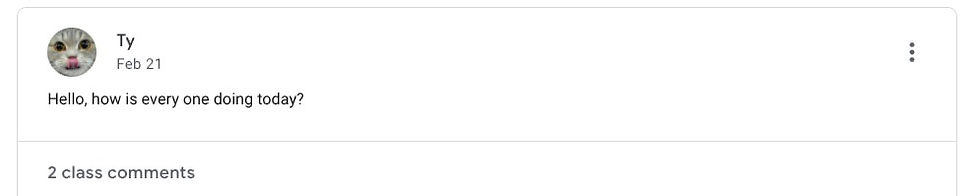


I also use the stream to post short messages to students for online days, summarizing their work for the day and encouraging them to reach out with questions. I recently started to post selfies too, to remind them that there is a caring adult on the other end of their screen.

Google Classroom Banners
Last, but certainly not least. I create and have my students create custom Google Classroom banners that make our Google Classrooms fun, engaging, and inclusive places to be. See more about how to Create your own Custom Google Classroom Banners here.

Other Organization Strategies:
Although our school has chosen to organize our classrooms in this way, it is certainly not the only way. Here are a couple of resources that suggest additional organization strategies:
Every teacher, staff, and school will need to figure out what works best for them, because the truth is, it can be really difficult for students to be productive while working online. Not being able to easily find an assignment will quickly turn students away. Seamless organization and consistency remove barriers, and plus, it just feels good to be organized!
If you are interested in learning more about teaching remotely, my article Online Teaching in the Time of Coronavirus gives an overview of how to transition to online teaching and When Schools Close Down, Parents Become Learning Coaches.




MoneyEarn.com.pk is worth exploring for anyone interested in discovering different online earning platforms. The content is arranged clearly, making it easy to find and explore new topics.
Thanks for sharing this helpful information. The article is easy to understand and useful for readers. I also found APKSting helpful for updated Android APK and game information
Solid overview. With so many apps requesting unnecessary access nowadays, keeping sensitive apps hidden and secure is a must. This guide breaks down APKHide features in a super simple, actionable way. Appreciate the great share for Android users.
An old classmate dropped a link to thedriftboss.com in our reunion group chat while everyone was reminiscing about games from school. Tried it again and it still held up as a solid example of easy-to-learn, hard-to-master gameplay. Ran stable on both my phone and laptop during testing. No complicated login process, just open and play, good for a group comparing scores together.
The Alanodt5 Game information is helpful for anyone exploring online earning games. The earning features are explained clearly, and the guide gives beginners a simple overview of how the platform works.